开发工具
插件
dsh-doctor
asdf17128
Find what your DeepSeek Harness (dsh) patches silently broke — dead patches, config fields dropped by whole-config repla…
agentclicordisdeepseek
PROJECT TOPICS
PROJECT README
macOS downloads under 90 MB, with the complete Harness runtime included.
A compact, unofficial desktop host for DeepSeek Harness on macOS and Windows.
Download · Installation · Why it is compact · Contributing
English · 简体中文


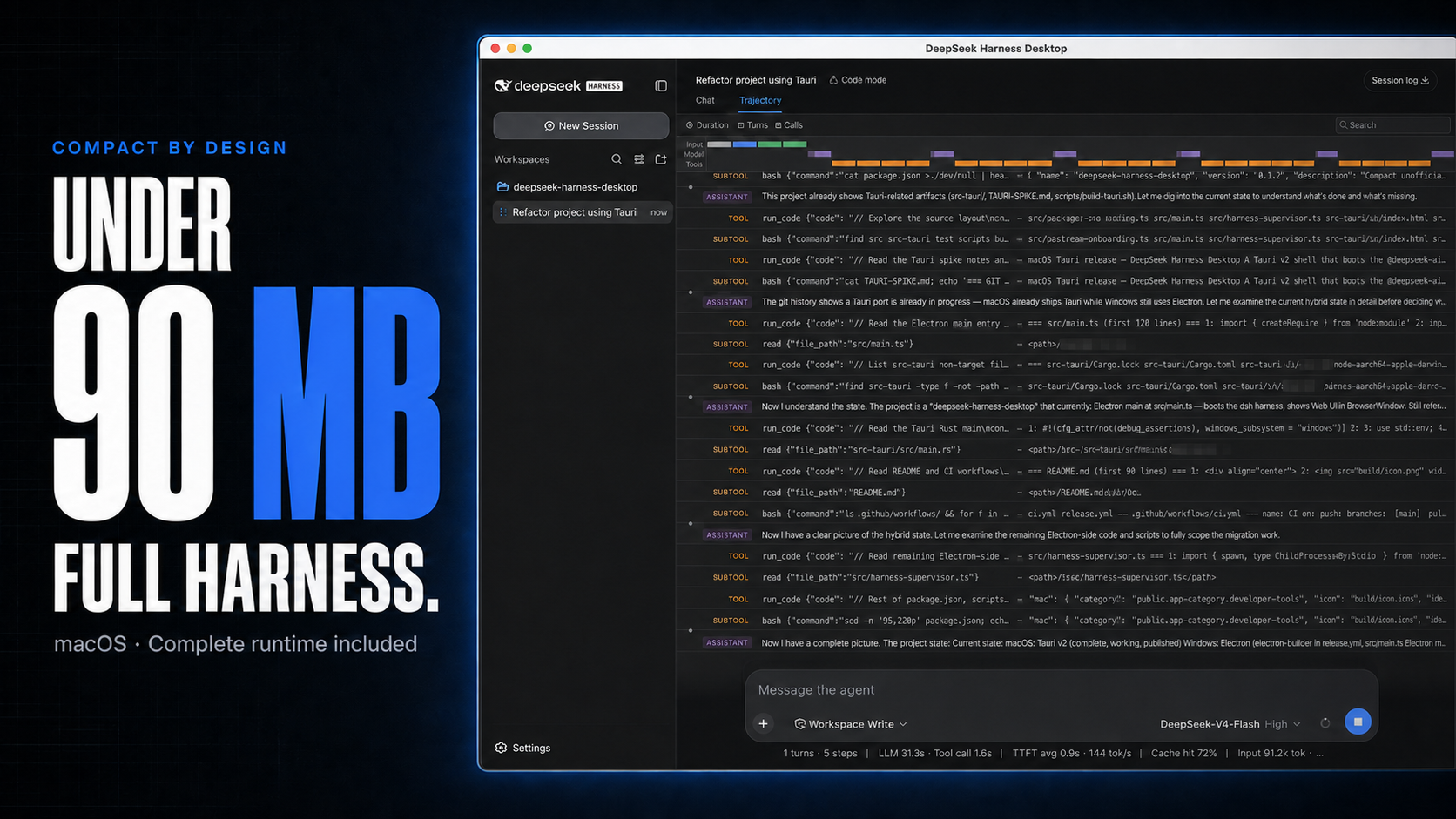
DeepSeek Harness Desktop packages the official DeepSeek Harness Web UI and runtime in a native desktop window. It starts and stops Harness automatically, so no separate Node.js installation or terminal command is required.
The macOS build uses Tauri and the system WKWebView instead of shipping another browser engine. The published v0.1.2 DMGs are 86.3 MB for Apple Silicon and 88.8 MB for Intel, about 42% smaller than this project's previous Electron DMGs while retaining the bundled Node sidecar and Harness runtime.
The Harness agent runtime is not forked, modified, or reimplemented here. This repository contains a lightweight Tauri host for macOS, an Electron host for Windows, packaging configuration, runtime verification, and release automation.
The desktop host skips the upstream internal-testing announcement before loading the Web UI. The model API key step remains available because it is functional setup, not a promotional notice.
[!IMPORTANT] This is an independent community project. It is not affiliated with or endorsed by DeepSeek AI. DeepSeek Harness is currently a developer preview and may introduce breaking changes.
Download size is one of this project's clearest advantages. Tauri lets the macOS app reuse WKWebView, which is already part of macOS, instead of bundling Chromium. The release build also removes source maps, type declarations, tests, documentation, and native binaries for unused platforms from the packaged runtime.
The result is visible in the published release assets. Sizes below use decimal MB and compare the same architecture and file type across two consecutive releases.
| macOS installer | v0.1.1 Electron | v0.1.2 Tauri | Reduction |
|---|---|---|---|
| Apple Silicon DMG | 147.8 MB | 86.3 MB | 41.6% |
| Intel DMG | 152.6 MB | 88.8 MB | 41.8% |
The ZIP downloads are 49.2% smaller on Apple Silicon and 49.3% smaller on Intel. These figures come directly from the published v0.1.1 and v0.1.2 assets.
The smaller download remains self-contained. Users still get the pinned Node sidecar, the official Harness runtime, native PTY and image modules, and automatic process management. CI enforces a 130 MB DMG budget and a 140 MB ZIP budget so future releases cannot silently give back the size reduction.
Installers are available on the latest GitHub Release.
| Platform | Architecture | Recommended file |
|---|---|---|
| macOS | Apple Silicon | mac-arm64.dmg |
| macOS | Intel | mac-x64.dmg |
| Windows 10/11 | x64 | win-x64.exe |
| Windows 10/11 | x64 portable | win-x64.zip |
Each release also includes ZIP archives and a SHA256SUMS.txt file for integrity verification.
Tagged macOS releases are hardened and ad-hoc signed by default. When Developer ID and notarization credentials are configured, the same workflow additionally signs, notarizes, and staples the app.
Download and run the x64 installer, or extract the portable ZIP. Windows SmartScreen may warn about the current unsigned build; confirm that the file came from this repository before continuing.
The desktop app uses the same ~/.dsh configuration and session data as the official CLI.
DeepSeek Harness Desktop
├── launches the packaged `dsh web` runtime
├── binds it to a random port on 127.0.0.1
├── acknowledges the pinned upstream welcome notice through the Harness API
├── uses Tauri + WKWebView on macOS and Electron on Windows
├── loads only the exact loopback origin in the desktop window
└── terminates the child process when the desktop app exits
Navigation is restricted to the local Harness origin and external HTTP(S) or mail links open in the system browser. The macOS Tauri host runs Harness in a dedicated process group so the runtime and its descendants are stopped together.
Third-party plugins installed into the shared web profile load inside the packaged Harness runtime. The macOS host supervises that runtime before and after readiness, so a startup failure or later process exit opens a local recovery screen instead of closing the desktop app. The screen can retry Harness, restore the last profile that remained healthy for at least five seconds, or start a temporary safe profile that excludes dependency-managed third-party bundles. These actions use the packaged runtime and do not require Node.js, the dsh CLI, or pnpm on the user's PATH.
The last-known-good snapshot contains only plugin transaction files (package.json, pnpm-lock.yaml, and pnpm-workspace.yaml when present). It does not overwrite sessions, credentials, workspaces, settings, or cordis.patch.yml. Safe mode also leaves the ordinary web profile unchanged and shows a compact Try normal mode action inside Harness.
In the macOS build, open Harness Settings → Plugins → Install & manage. The desktop app contributes installation, the user-plugin list, command-line integration, and restart state as a native Plugins Settings tab; it no longer adds a separate sidebar entry, plugin page, or install sheet. Paste an npm package, github:owner/repo, or a public GitHub HTTPS repository URL, review the third-party-code warning, and choose Install. The app uses its bundled DSH runtime and pinned pnpm, so no terminal or global pnpm installation is required.
Installing or removing changes the on-disk web profile but does not hot-load code into the current Harness process. The same Settings tab then shows the pending restart state. Restarting replaces the supervised Harness child process without quitting the desktop app. The new profile must remain healthy for five seconds before it becomes the new last-known-good snapshot. A startup failure or early runtime exit automatically restores the pre-change profile and starts Harness again. An interrupted operation is also rolled back on the next app launch.
The desktop host also watches the shared ~/.dsh/profiles/web. When dsh plugin --profile web add/remove/update ... changes that profile in a terminal, the current Harness UI detects the stable dependency change and asks whether to restart. Changes made while the desktop app is closed are loaded and verified automatically on the next launch, with the same five-second validation and rollback behavior.
The desktop app does not require a globally installed DSH. Enable in Terminal in Install & manage installs a desktop-managed ~/.local/bin/dsh launcher that calls the real DSH entry bundled in the app and shares its DSH_HOME. An existing dsh command is never silently replaced; switching to the desktop-managed version requires an explicit choice. A newly added PATH entry takes effect in a new terminal session.
Third-party plugins run code on the local machine. The linked open directory is for discovery, not compatibility validation, security certification, or official endorsement. Inspect the repository and publisher before installing.
The desktop shell checks GitHub Releases for a newer version a few seconds after startup. The update UI stays hidden unless a newer release is available. When an update is found, it adds a compact row immediately above Settings in the Harness sidebar:
The row follows the Harness sidebar's expanded and compact layouts, active language, light or dark theme, keyboard focus, and reduced-motion preference. Update surfaces stay below Harness modal dialogs so they do not interrupt Settings or other product flows.
The check runs again every 6 hours while the app stays open. This is a community project with ad-hoc signed builds, so updates are downloaded manually from the release page rather than installed in place.
Node.js 22.19 or newer is required.
git clone https://github.com/chokwinlee/deepseek-harness-desktop.git
cd deepseek-harness-desktop
npm ci
npm test
npm start
Build an unpacked application for the current platform:
npm run pack
npm run verify:packaged
Build a macOS Tauri release for the current architecture with npm run build:mac; build the Windows Electron release with npm run dist. The application currently pins @deepseek-ai/dsh@0.1.0-rc.6; dependency upgrades require a packaged-runtime smoke test and a real desktop launch before release.
Developer ID signing is optional. To enable it, configure these GitHub Actions
secrets: APPLE_CERTIFICATE (base64-encoded Developer ID Application .p12),
APPLE_CERTIFICATE_PASSWORD, KEYCHAIN_PASSWORD, APPLE_ID, APPLE_PASSWORD
(an app-specific password), and APPLE_TEAM_ID. Without them, the release uses
ad-hoc signing, matching the earlier unsigned release behavior.
Every tagged release is built on GitHub-hosted macOS Intel, macOS Apple Silicon, and Windows x64 runners. The workflow:
package-lock.json;Bug reports and focused improvements are welcome. Read CONTRIBUTING.md before opening a pull request. For security issues, follow SECURITY.md instead of opening a public issue.
The desktop host is licensed under the MIT License. DeepSeek Harness and bundled third-party software retain their respective licenses; see THIRD_PARTY_NOTICES.md.
CLASSIFICATION EVIDENCE
系统优先读取 GitHub Topics,再与站内分类词典和词根规则比对。
asdf17128
Find what your DeepSeek Harness (dsh) patches silently broke — dead patches, config fields dropped by whole-config repla…
asdf17128
Manage DeepSeek Harness profiles — list, create, clone, diff, and share a whole dsh setup as one portable file.
aust24lzy
DeepSeek Harness (DSH) 开源插件导航站 —— 实时同步 dsh-plugin 生态,按 Stars 动态排行